
Orbit RDP Guard App (Graphical User Interface)
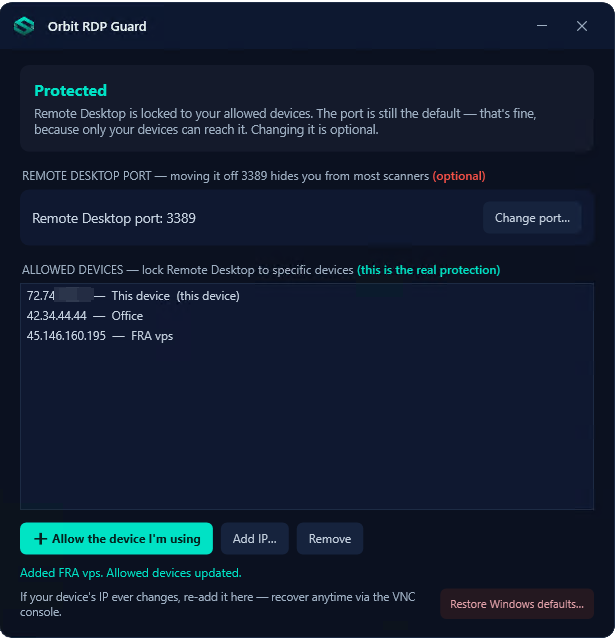
Orbit RDP Guard is a small app that locks Remote Desktop on your Windows Server VPS so only your devices can connect. You can't permanently lock yourself out: the risky changes here (locking down and changing the port) each have a 90-second automatic undo, and the OrbitServers VNC console in your dashboard always gets you back in.
Important: Run this app on the server itself, while you are logged in through Remote Desktop — not on your home computer. Running it at home does nothing to your VPS.
1. Download and open the tool
- Download the app from this exact link:
https://github.com/orbitservers/orbit-rdp-guard/releases/latest/download/OrbitRDPGuard.zip - You'll get a file named
OrbitRDPGuard.zip. Right-click it and choose Extract All. - Open the new
OrbitRDPGuardfolder, then double-clickStart Orbit RDP Guard.cmd.
Windows may show one or two safety warnings because the app is small and unsigned — just click through:
- If you see Unknown Publisher, click Run.
- If you see a blue Windows protected your PC box, click More info, then Run anyway.
- When asked "Do you want to allow this app to make changes to your device?", click Yes.
The app window opens — there's nothing else to set up.
2. Restrict Remote Desktop to your devices
This step blocks everyone except the devices you list. A status heading shows where you stand: Red (Not protected), Amber (limited protection, or needs attention if something else on the server is leaving Remote Desktop open), and Green (Protected).
- Click ➕ Allow the device I'm using.
- A Confirm your IP box appears showing your detected IP address (four groups of numbers, like
203.0.113.5). If it looks right, click Allow this device. - Because this is your first lockdown, a Remote Desktop locked down box appears with a 90-second timer. Before you confirm, disconnect and reconnect with Remote Desktop to make sure your device still gets in. Once you're back in and it's working, click ✅ All good — keep it. If you can't reconnect or the timer runs out, the app undoes the lockdown by itself, so you can't get stuck.
Your heading turns Green — Protected. Your settings are saved and survive a reboot, so you can now close the app.
Adding another device
Click Add IP…, then in the Add allowed device box enter the device's IP address or range (for example, 203.0.113.0/24) and a short Label (e.g. Office), then click Add. Once you're protected, extra devices are added instantly with no countdown.
3. (Optional) Change the Remote Desktop port
You do not need this to be safe — Step 2 is the real protection. Changing the port hides Remote Desktop from bad actors who scan IP ranges looking for open default RDP ports.
Before you start: during this step you're briefly disconnected and must reconnect using a new address. Write that address down before you disconnect — your shared clipboard won't work once you're disconnected.
- Click Change port….
- In the Change Remote Desktop port box, either type a number between
20000and49150and click Use this port, or click Pick one for me. - One box appears showing your new address in large text (like
203.0.113.45:23456), a write-it-down warning, and a 15-second countdown. Note the address now. - When the countdown ends (or you click ⏭ Disconnect now), your session disconnects. Wait about 15–20 seconds for the new port to open.
- On your home computer, open Remote Desktop Connection, type the new address into the Computer box, and click Connect.
- Once you're back in, click ✅ I'm reconnected — keep the new port. If you don't confirm within 90 seconds, the app switches you back to the old port automatically.
4. If you can't reconnect
You have two guaranteed ways back. First, simply wait: if a change went wrong, the 90-second timer restores your previous settings on its own, so give it up to 90 seconds, then reconnect the old way. Second, use the OrbitServers VNC console — log in to your OrbitServers dashboard, open your server, and click VNC console. This browser screen doesn't use Remote Desktop, so it always works. Inside it, open Orbit RDP Guard and click Restore Windows defaults…; it asks you to confirm first, and if you changed the port you'll go through the same disconnect/reconnect countdown — then log in with Remote Desktop using no :port on the end, and confirm the change.
If a new port still won't connect after waiting, contact OrbitServers support or open a Discord support ticket, and we'll work it out with you.
Was this article helpful?
Written by Dglt